
We want you to have lots of information about the transition to iTrent and what it will mean for you. We have provided answers to questions you may have, and we will add to them as more frequently asked questions are raised.
Please contact us if you cannot find the information you’re looking for and we will get back to you.
What is iTrent?
What is iTrent?
We have introduced a new HR and Payroll system called iTrent, which includes features that allow us to manage routine HR tasks online using self-service.
Why did we need to change the way we did things?
We recognised that our processes were manual and in some cases paper-based. Also, there wasn’t one clear process for booking and recording leave and other absences.
Having consistent ways of working means we are transparent and fair in how we manage or processes. Also, using technology is efficient which gives you back some valuable time and takes the frustration out of doing things manually.
How can I access iTrent?
You can access iTrent using the button at the top of this page.
There will be 2 views for you:
My View – this is your personal profile and includes your personal and job information.
Manager View – this is accessed from My View. If you are line manager, you will be able to view your direct reports, and their direct reports (if any).
Self-Service
What does self-service mean?
Rather than forward requests for information and changes to colleagues in other departments (such as HR and Payroll), we can view and update our personal details using iTrent. We can also carry out some tasks such as requesting leave.
What self-service tasks can I perform using iTrent?
You can view and update your personal information such as your address, emergency contact details.
You can view and download your payslips.
You can view information about your absence and leave bookings and request time off work.
You can view and update your banks details.
Can I update my bank details using self-service?
Yes. It’s important that this is done at least one week before pay day, otherwise your salary will still go to your old account. It’s important to not close your old account until you have received your first salary payment into your new one.
If the sort code is not available in the system, please send the sort code and bank name to payroll@worc.ac.uk and they will set this up. You can then update your bank details.
Can I change my surname using iTrent?
Changes to your name should be notified to HR via HR@worc.ac.uk. We will need to see a certificate to evidence this change such as a marriage certificate or title of deed poll.
What information about me is shared with my line manager?
Your manager will be able to view your name, personal phone number and your emergency contact details. They will also be able to see your contractual information such as your department and job title.
They will not be able to view any information regarding your ethnicity, gender, race, religion, sexuality, or disability status.
Pay and Payslips
Can I view my payslip using self-service?
Yes, you will be able to view, download or print your payslip from iTrent (My View).
Historic payslips (pre-September 2024) will not be made available on iTrent as they were produced from our previous payroll system. These were emailed to you monthly via that system.
How will Student Workers and Associate Lecturers receive their payslips?
If you are a Student Worker or Associate Lecturer, you also have access to My View to view and update your personal information and access your payslips.
Use the button at the top of this page to access My View, and select the single sign-on option. If you are off campus, you will need to use your university log-in details to pass the authentication step.
Can I still get a paper payslip?
We want to reduce the number of paper payslip requests so we encourage you to view and download/print your payslip.
Why does my payslip show a payment and deduction as ‘salary adjustment’ against my pay?
Any absence taken, including annual leave, will show on the payslip as a payment and deduction to represent the adjustment for time off work. This will not affect your pay if you have sufficient entitlement; the payment and deduction values will be same and there is no change to your total pay.
Will my tax code be affected by this change to the payroll system?
No, but if your tax code does change and you are not sure why, you can contact HMRC on 0300 200 3300 (information is also available at gov.uk/tax-codes).
Working Patterns
What are work patterns and why is this information needed?
The Absence module on iTrent determines how many hours of annual leave have been approved by line managers and maintains a balance for the year. We need to record how many hours per day your team members work so that this calculation works accurately.
For part-time colleagues, annual leave entitlement will reduce pro-rata. Please record which days are worked and how many hours per day so that the annual leave balance is correctly adjusted.
For full-time colleagues working 37 hours per week, you have three options:
1. An average of 7 hours and 24 minutes per day, Monday to Friday. We encourage you to use this pattern if your team member works flexibly across the week in accordance with their timetable or other work demands.
2. A fixed pattern of 7 hours and 30 minutes Monday to Thursday, and 7 hours on Friday. This pattern is common for professional services colleagues.
3. If you work full-time but do not work a standard work pattern (such as compressed hours) or have a contractual flexible working arrangement, please record which days you work and the number of hours per day so that your annual leave balance is correctly adjusted.
Please note that the use of work patterns for the purposes of enabling system functionality in iTrent does not create a contractual change.
As a manager, where can I view the working pattern for a member of my team?
From Manager View, select ‘Your Staff’ and then select your employee. At the bottom the page, click on Employment, and then Working pattern details.
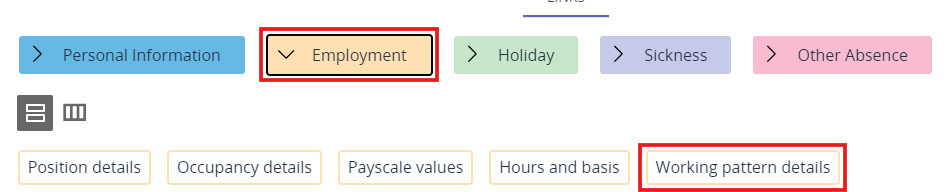
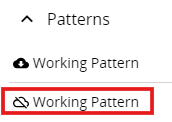
The patterns for that individual will then show on the left-hand menu. You may see two or more patterns in the list.
• The first will be the ‘inherited’ working pattern, which is the working pattern that is most used in this team or department.
• The other patterns in the list are changes applied since we went live with iTrent. The current pattern will be the last in the list.
Annual Leave
How is holiday entitlement calculated for different colleagues in the University?
Employees
As an employee, you can view your holiday entitlement in My View. should visit the HR pages
• The days / hours relevant to your contractual holiday entitlement, pro rata for part-time.
• 11 days / 81.4 hours for the bank holidays and 3 closure days, pro rata for part-time.
• Any carry over from the previous leave year.
The balance figure shown in My View will be this total amount, minus holidays already booked, the bank holidays and University closure days that have been automatically deducted for ease. This is your bookable holiday entitlement.
Workers
On a worker contract, you do not have a bookable holiday entitlement. The University pays you for holiday accrued during any assignment, in addition to the rate of pay, calculated as a percentage of your hourly rate. You will see a separate line on your payslip on My View, which shows your holiday pay being paid on top of your basic hours.
Affiliates
Affiliates are not employees of the University, therefore they do not have a bookable holiday entitlement, and will not have any access to My View.
Why is annual leave entitlement now in hours, even though I am full-time?
Feedback suggested that it is confusing to manage two different systems for managing annual leave, i.e. full-time colleagues in days and part-time colleagues in hours. In iTrent, we allocate (and book) annual leave in hours for everyone. We already do this for part-time colleagues.
How do I convert my annual leave entitlement into hours?
To convert annual leave entitlement from days to hours, multiply annual leave entitlement by 7.4.
So, 25 days = 185 hours
Then, add the bank holidays in the year and the 3 University closure days and do the same (11 x 7.4 = 81.4)
The total (266.4) is the annual leave for the year.
This will be a change for full-time colleagues, so if you need clarification on your annual leave, please get in touch with us at iTrent@worc.ac.uk.
How do I book my annual leave?
You can request the dates of your annual leave via My View (see the video guide on the page called User Guides).
My team uses an online system for booking leave already. How will we transition to iTrent?
If you are using Time Off Manager Pro or Power Automate to manage your annual leave, please carry on using this system for the 2023-24 academic year. You will switch to using iTrent for your leave bookings for the 2024-25 academic year.
We will take any agreed carry over leave remaining and add this to iTrent around the end of August 2024 so you will not lose this.
Next year, iTrent will automatically carry forward up to 37 hours (pro-rata for part time colleagues) so we only need to do this manually once.
Can I view my team’s leave bookings so that I can plan my own leave?
Yes, you will be able to view a team calendar which shows the leave bookings of your peers (see the video guide on the page called User Guides).
For the option to view our teams’ annual leave, what level of team will this be?
We can create Peer Groups which will allow you to view holiday and other absence dates for everyone within that group. You can be part of more than one Peer Group.
If you require a peer group to be set up, please contact your Team Administrator who has the access and guidance to complete this task.
My holiday entitlement in 2025/26 seems lower than I expected, why is that?
Holiday entitlement is calculated using your annual leave and any Bank Holidays. Your Bank Holidays are then automatically deducted from your Annual Leave entitlement depending if your work pattern shows you working on a day that is classed as a Bank Holiday.
If you have any questions about Annual Leave entitlement, please contact HR.
If the reporting manager is currently set as vacant, what happens to my holiday requests? Where does this go and how does this get approved?
The request will go to the next line manager in the line management hierarchy. Even vacant roles have a manager assigned to them.
If a holiday request is not authorised by the manager in time, can this be authorised by the manager at a later date?
Managers have up to 3 weeks to approve a leave request, and they will be sent a reminder after 2 weeks.
After this time, the request will escalate to the manager’s manager.
This senior manager can approve or reject the request.
The HR Team can redirect this request back to the original line manager (or a different manager). You can request this via iTrent@worc.ac.uk.
Will my unused annual leave carry over to the next academic year in iTrent?
If your team is using iTrent for managing annual leave in 2023-24, any unused annual leave up to 37 hours (pro-rata for part time colleagues) will automatically carry over into the 2024-25 academic year.
For teams commencing on 1 September 2024, we will take any agreed carry over leave remaining and add this to iTrent around the end of August 2024 so you will not lose this.
Next year, iTrent will automatically carry forward up to 37 hours (pro-rata for part time colleagues) so we only need to do this manually once.
Bank Holidays and Closure Days
Are University closure days included in my holiday entitlement?
Yes. We have allowed for 3 University closure days, and they are calculated in the same way as as bank holidays. The 3 days are reduced pro-rata if you work less than 37 hours per week.
The 3 additional days will be added to iTrent shortly.
Do I need to book Bank Holidays or University Closure Days off?
In iTrent, all Bank Holidays and University closure days will be pre-booked for you. If one of these days falls on a day you usually work, iTrent will deduct the number of hours you usually work on this day from your balance.
When are the Bank Holidays and University Closure Days for 2025/26 and how are those recorded in iTrent?
Please visit the HR Sharepoint page for more information about Bank Holidays and University Closure Days and how they are calculated.
Sickness and other absences
If I am too ill to come to work, what should I do?
Please continue to advise your line manager if you are too ill to work.
Your sickness absence will be recorded in iTrent by your manager using Manager View. When you return to work, speak to your manager to ensure the absence has been recorded correctly, particularly the duration of the absence. This could affect your pay if the information is incorrect.
You can view the University’s policy and procedure on sickness absence here.
My employee is returning to work on a ‘phased return’. How do I record this in iTrent?
In situations where an employee returns to work on a phased basis, please inform the HR team who will record these periods accurately in iTrent.
Can I book any other type of leave using iTrent?
No. You can only request annual leave via My View. Your manager will be able to record other absences directly into iTrent for you using Manager View.
For parental, maternity or paternity leave, please speak to your HR Business Partner in the first instance.
Can we also request Research Leave, Study Leave and Compassionate Leave through the new system?
You should request this type of leave by speaking to your manager first. Your manager will then record these and other types of absences in iTrent.
Will the system manage Flexi Leave?
Please carry on with your existing processes. There are no immediate plans to manage Flexi Leave in iTrent. We need to define the University’s policy approach for this, which is an ongoing discussion. We will keep you updated on the plans for this.
Timesheets
I cannot access my Timesheets. Who should I call?
If you know your staff number, and work email address, you will need to contact the IT Department to reset your password.
Do this by reaching out to the IT Service Desk on +44(0)1905 85 7500 between 09:00-17:00 GMT, Monday to Friday.
You will need to quote your staff number and your postcode to verify your account.
If you do not know your Staff Number or Work Email Address, please reach out to the HR Systems and Data Team via email to iTrent@worc.ac.uk, who will be able to support you .
How do I submit my timesheets via My View?
We have developed some easy to follow video guides which can be found on the User Guide section of this site.
Here is a quick link for you.
Can I access my timesheets from the old system?
We have de-commissioned this old system, so unfortunately it will not be possible to access your old timesheets after February 2025.
All timesheets submitted via the old system will be paid as long at your line manager has approved it.
Who do I contact if I have a question about payment for my time worked?
If you have any questions about outstanding payments, please speak to your line manager in the first instance. Retrospective claims should be made via My View.
Learning
Where can I find the list of courses available to me?
You can view our course catalogue in My View. If you cannot find what you’re looking for, please contact us at staffdevelopment@worc.ac.uk and a colleague will assist you.
How do I book onto a course via My View?
We have developed some simple videos and reading guides which can be found on the User Guide section of this site. Here is a quick link for you :
PDF Guide: How to book on to a course via My View
Video Guide: To follow
Please check with your line manager before booking on a course to ensure this is a relevant for your role, and that your team’s resourcing needs are not impacted.
How do I cancel from a course via My View?
We have developed some simple videos and reading guides which can be found on the User Guide section of this site. Here is a quick link for you.
PDF Guide: How to cancel from a course via My View
Video Guide: To follow
What if the course I wish to attend isn’t listed, or there is no scheduled course?
You can add yourself to a waiting list if there is a course you are interested in that has no scheduled events. This guide will show you how.
We will book you onto the course when a date is scheduled.
If you cannot find what you are looking for, please contact us at staffdevelopment@worc.ac.uk and a colleague will assist you.
Why does New Outlook open when I try to save my course calendar invite?
This is happening because your Outlook apps are out of sync. Watch this short demonstration to show you how to resolve this issue.
Miscellaneous Queries
Where can I get more information if my question has not been answered on this page?
You can contact us at iTrent@worc.ac.uk.
Onboarding
I’ve not received my password via text message.
If you know your staff number, and work email address, you will need to contact the IT Department to reset your password.
Do this by reaching out to the IT Service Desk on +44(0)1905 85 7500 between 09:00-17:00 GMT, Monday to Friday.
You will need to quote your staff number and your postcode to verify your account.
If you do not know your Staff Number or Work Email Address, please reach out to the HR Systems and Data Team via email to iTrent@worc.ac.uk, who will be able to support you.
Password Requirements – What are they?
The minimum requirements for password changes are that your password needs to be at least 8 characters, a number, and a capital letter.
Once you have reset your password, please allow 30 minutes for the Onboarding Portal to update, at this point take the following steps:
Open Google or Microsoft Explore
Click on the 3 dots in the right hand corner
Open a Private/Icognito Window
Copy and paste https://ce0816li.webitrent.com/ce0816li_onb/
To log in to the Onboarding Portal, your username will be your @worc.ac.uk email address.
What do I need to complete my personal information?
In the Onboarding Portal, you will be asked to completed the following sections:
Personal Information
Addresses
Contacts
National Insurance
Emergency Contacts
Bank Details
Qualifications
Memberships
HMRC Starter Checklist
ID Card Image
Contract Signing
Please prepare the relevant information prior to completing the sections above, for further guidance on the ID Card Photo, please refer to the information below.
I do not have a National Insurance number, what should I do?
If you haven’t already done so, you will need to apply for an NI Number on the Government Website by using the following link.
https://www.gov.uk/apply-national-insurance-number/how-to-apply
Please continue to complete and submit the Onboarding Checklist, when you receive your NI Number letter from HMRC please inform the Payroll Team via email to Payroll@Worc.ac.uk
What are the ID Card Photo requirements?
The file types supported by Card Exchanger are: bmp, jpg, jpeg, png, gif, tif and tiff. Files should not be more than 50KB in size.
The photo must show a close-up of your face and shoulders with you looking straight ahead. Photos should be in full colour and taken against an off-white or very light background. Please don’t submit photos with any effects or filters applied.
Your face and eyes must be clearly visible. If you wear glasses ensure there’s no reflection and the frames don’t obstruct your eyes. Caps, hats, and dark glasses are not acceptable.
Religious headwear is allowed but it must not cover your face.
On your first day, you will need to arrange to visit the HR Office, where a member from the HR Operations team will print out your access card.
Further information on how to do this will be in the Onboarding Portal.
At the Point of ‘Exporting’ an applicant from Stonefish
Following acceptance of the conditional offer, you will receive your invite to access our Onboarding Portal within 3-5 working days, where you will be able to complete your personal details.
To access the Onboarding Portal, please use the following username and password:
Staff Number:
Username (Work Email Address): Please keep this information safe, as you will need it to log into the Onboarding Portal and many other University Systems.
For security, your account password will be sent seperately via text message to the mobile that you provided as part of your application. If you do not receive this text message, please reach out to the Univeristy’s IT Service Desk based in the United Kingom on +44(0)1905 85 7500 between 9:00-17:00 GMT, Monday to Friday.
When you are provided with a new password, please take the following steps:
Clear your browser history/Cache
Click on the 3 dots in the right hand corner, and select ‘New Incognito Window’.
In the New Incognito Window, copy and paste the link https://ce0816li.webitrent.com/ce0816li_onb/.
Click on ‘Single Sign on’ and use the @worc.ac.uk email as your username.
This should then log you in for you to complete the Onboarding Process.